
Creating your first online mock test can feel like a big step. In reality, it is one of the most rewarding changes a coaching institute can make. Once the first test is live, every test after it becomes faster, and your students receive their results the moment they finish.
This guide walks you through the complete process, from planning the paper to sharing results. The steps apply to most good test platforms, and we will also show exactly how each one works on CoachClass.
Step 1: Plan the test before you open any software
A well-planned test saves hours later. Before you begin, decide:
- The purpose: a full-length mock that mirrors the real exam, a chapter test after finishing a unit, or a short quiz to revise a topic.
- The structure: which sections the paper will have (for example Reasoning, Quantitative Aptitude, English, General Awareness) and how many questions each will carry.
- The marking scheme: marks per question, negative marking, total marks and the passing score.
- The duration: ideally the same as the real exam, so students build genuine time management.
Write this on a single sheet of paper. It becomes your blueprint, and it makes the next steps remarkably quick.
Step 2: Create the test and set the rules
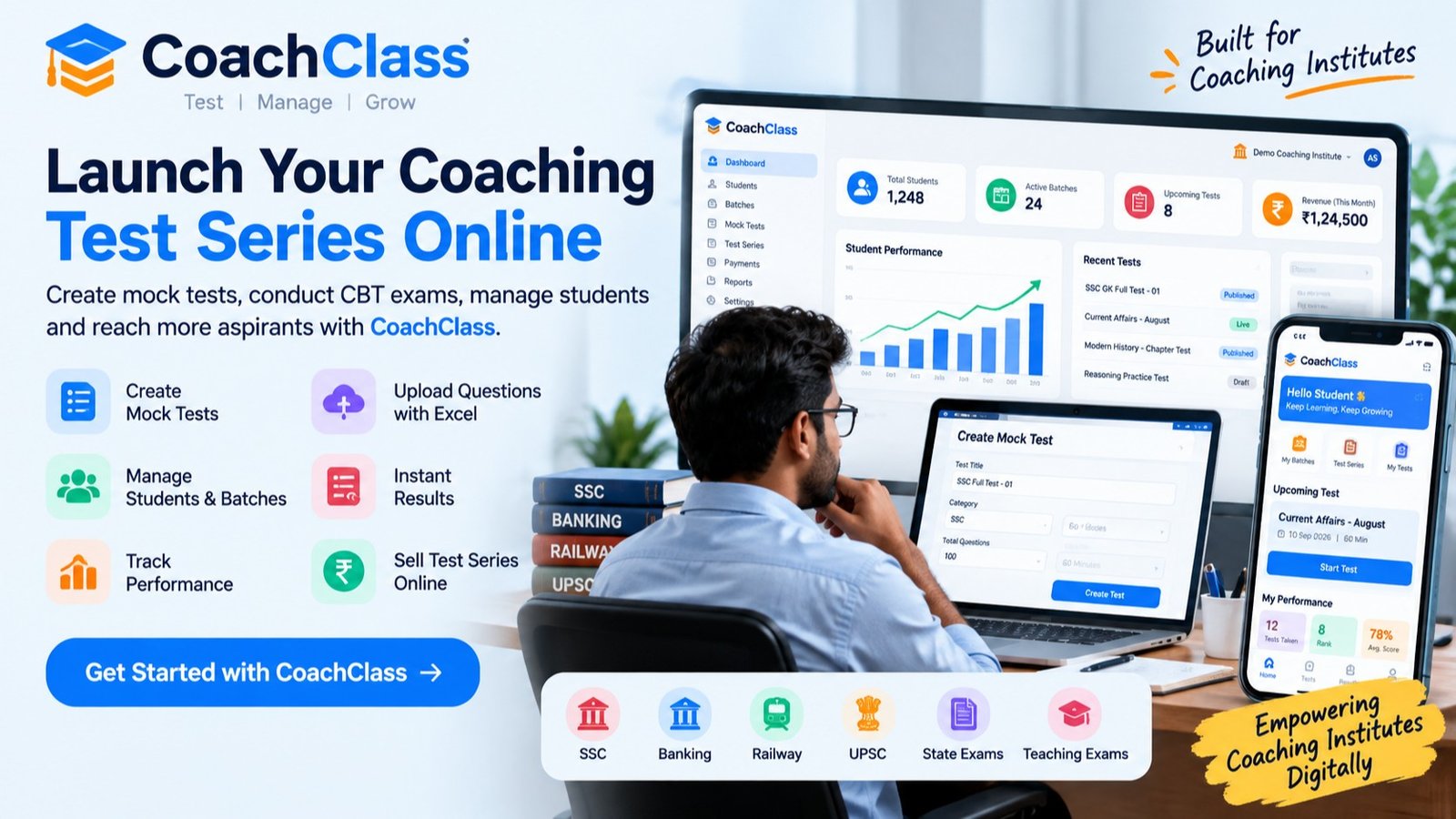
On CoachClass, open Mock Tests from your coaching dashboard and create a new test. You will fill in:
- Title and instructions: the instructions appear to students before they begin, just like the instruction page of a real exam.
- Test type: Mock Test, Chapter Test or Quiz.
- Result visibility: show results immediately after the test, or declare them manually later. Manual declaration is ideal for scholarship tests or when you want to review answers first.
- Duration in minutes.
- Sections: add as many named sections as your exam needs.
- Scoring: total marks, passing marks, marks per question and negative marking.
Take a moment to double-check the negative marking value. It is the single setting that most changes a student's final score.
Step 3: Add your questions
This is where good software saves the most time. CoachClass gives you three ways to add questions, and you can combine them in the same test.
Add questions one by one
Type the question, add the options, mark the correct answer, and optionally add an explanation, a difficulty level and an image. Images are very useful for diagrams, graphs and figure-based reasoning questions. Every question you add this way is also saved to your Question Bank, ready to reuse.
Pick questions from your Question Bank
Your Question Bank is organised by subject and topic. When building a new test, search the bank and attach the questions you need. Over a few months, this turns into a valuable library, and creating a revision test becomes a matter of minutes.
Upload a full paper from Excel
If your questions already exist in a file, download the Excel template, paste each question with its four options, the correct option (A, B, C or D), an optional explanation and difficulty level, and upload it. The template supports Hindi as well as English. Imported questions arrive in an Unassigned group, and you then place them into the right sections.
Step 4: Make the test available to the right students
Next, decide who should see the test. In CoachClass, open the relevant Batch and select the tests that batch should receive. Your morning and evening batches can therefore follow completely different test schedules.
You can also include tests in a Test Series, which is perfect when you want to offer a structured set of tests, free or paid.
Step 5: Preview it like a student
Before announcing the test, attempt it yourself or ask a colleague to. Check that:
- every question shows the correct options and images,
- sections appear in the intended order,
- the timer and marking behave as planned,
- the test looks clear on an ordinary Android phone.
Five minutes of checking prevents an awkward correction notice later.
Step 6: Students attempt the test
Students take the test in an exam-style CBT interface with a timer, a question palette and the option to mark questions for review. They can attempt it on the website or through the CoachClass Android app, which is especially convenient for students who do not have a computer at home.
Step 7: Review the results and act on them
Here is the exciting part! Results are calculated automatically the moment students submit. Look beyond the overall scores:
- Which questions did most of the batch get wrong?
- Which topics consistently pull scores down?
- Which students are improving, and who needs extra attention?
Use these insights to plan your next classes. This feedback loop, test, analyse, re-teach, is what turns mock tests into real improvement.
Common mistakes to avoid
- Making every test full length. Mix full mocks with shorter chapter tests so students are not exhausted.
- Skipping explanations. A one-line explanation per question multiplies the learning value of the test.
- Forgetting the mobile check. Most students will attempt the test on a phone.
- Not reusing questions. Build your Question Bank steadily, and future tests become effortless.
Frequently asked questions
How long does it take to create an online mock test?
The first test takes the longest, mainly because of entering questions. With an Excel file ready or a growing Question Bank, later tests are much faster.
Can I add questions in Hindi?
Yes. Questions and options can be written in Hindi, and the Excel template includes a Hindi example.
Can I hide results until I am ready?
Yes. Choose the manual result declaration option when creating the test, and publish the results whenever you decide.
Ready to create your first online mock test? Create a free CoachClass coaching account and build a short test for one batch today. Your students can attempt it on the CoachClass app from Google Play. Learn more on our page for coaching institutes.